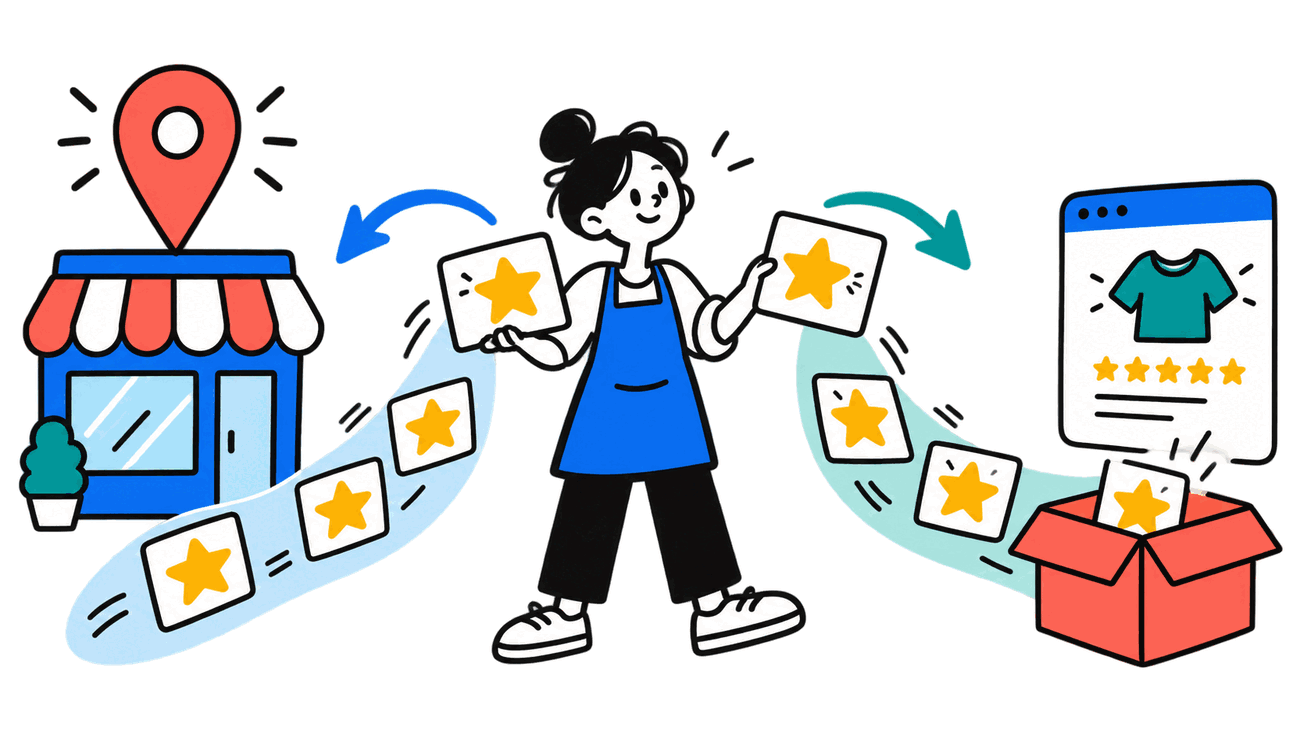
Google reviews for small business are not one system. A local plumber, an online store, and a product brand can all have stars on Google. Those stars may come from different programs, appear in different places, and measure different parts of the customer experience.
That difference matters. A restaurant can collect hundreds of local reviews and still have no store rating in its search ads. An online brand can earn strong product ratings and still have a weak local profile. The stars may look alike, but they do different jobs.
The practical answer is simple: local businesses should focus on Google Business Profile reviews. Online sellers should understand both store ratings and product ratings. A business that serves local customers and ships products may need all three.
Google reviews for small business come in three forms
Owners often talk about two Google review systems: local reviews and e-commerce reviews. That is a useful starting point, but the e-commerce side splits again. Google tracks trust in the store separately from trust in a product.
- Google Business Profile reviews rate a local business or service location.
- Store ratings rate the buying experience with an online seller. Google used to call these seller ratings, and many marketers still use that name.
- Product ratings rate a specific product, not the store that sold it.
Google Customer Reviews is not a fourth type of public rating. It is a free survey program that can collect store reviews after an online order. Those reviews can feed a store rating. Google can also build store ratings from approved review partners and its own research.
Google Business Profile reviews help local customers choose
Google Business Profile reviews are the familiar stars attached to a business in Google Search and Maps. They matter most when a customer is choosing between nearby businesses or checking whether a company is real and trusted.
Where local reviews appear
- Google Maps on desktop and mobile
- Local search results, including the map results for searches such as “plumber near me”
- The business panel that appears when someone searches for a company by name
A coffee shop in Upper Arlington, a dentist, a roofing company, and a service-area plumber all belong in this system. The review covers the customer’s experience with the business, not one item sold by the business.
How to set up and request reviews
1. Claim or create the profile. Start at Google Business Profile and use the Google account that should own the listing.
2. Complete verification. Google may offer video, phone, text, email, live video, or mail. The method depends on the business and cannot always be chosen.
3. Create the review link or QR code. After the profile is verified, open the profile controls and choose the option to ask for reviews.
4. Send the request after a real customer interaction. For a service business, that may be shortly after the job is complete. For a restaurant or shop, it may be on a receipt or follow-up message.
Google allows businesses to ask customers for honest reviews and provides a review link and QR code. Customers must sign in to a Google account, but that account does not need a Gmail address.
How to manage bad or fake reviews
A business cannot remove a review just because it is harsh or unfair. Google will consider removal only when a review breaks a policy, such as spam, fake engagement, harassment, a conflict of interest, or certain kinds of prohibited content.
To flag a review, open the profile, select Read reviews, choose the report option next to the review, and select the reason. Google says review checks often take several days. If Google finds no violation, the business may have a one-time appeal through the Reviews Management Tool.
Reply in public when a real customer had a bad experience. Keep the answer short. Do not share private details. State what you can fix, then move the conversation to phone or email.
Store ratings measure trust in an online seller
Store ratings answer a broad question: Was this merchant good to buy from? They can reflect shipping, customer service, returns, order accuracy, and the full buying experience. They do not rate one product.
Where store ratings appear
- Text ads on Google Search
- Free product listings in Search and Shopping
- Some unpaid merchant results and other Google surfaces, including YouTube
Google says store ratings on text ads produce an average 2% lift in click-through rate. That is an average from Google’s own data, not a promise for every advertiser. Google also says the rating must be at least 3.5 stars to appear on a text ad. Unpaid listings may show a lower rating.
How store ratings are collected
Google combines several sources. These can include Google Customer Reviews, approved third-party review partners, shopping reviews tied to the store domain, and Google-led research. A review does not have to come from Google Customer Reviews to count.
The free Google Customer Reviews program is the direct option for many small online stores:
1. Verify and claim the store website in Merchant Center.
2. Activate Google Customer Reviews. In Merchant Center, open Settings, select Add-ons, find Google Customer Reviews under Discover, and activate it.
3. Add the survey opt-in to the confirmation page. A customer can choose whether to receive Google’s survey. If the customer opts in, Google sends the survey after the estimated delivery date.
4. Pass accurate order data. The module needs the order ID, customer email, delivery country, and estimated delivery date.
Google’s current Merchant Center setup guide places the program under Settings and Add-ons. Its technical guide requires the opt-in module on every order confirmation page. Shopify merchants using the Google and YouTube app may have a platform-specific setup path.
The 100-review rule is a benchmark, not a switch
The old rule of thumb was 100 reviews in one country during the prior 12 months. Google’s current rule is different. It looks for enough eligible reviews from that country during the last 24 months to calculate a rating with confidence. Google says the number varies, but most merchants reach a rating after 100 or more eligible reviews.
Reaching 100 does not force stars to appear. Ad auctions, domain matching, review quality, country, and the content of the ad can all affect display. Treat 100 as a planning target, not a guarantee.
Product ratings measure one product
Product ratings answer a narrower question: Do buyers like this item? The stars follow the product, not the store. The same product rating may draw from reviews collected by several merchants, review sites, aggregators, and Google users.
Where product ratings appear
- Shopping ads
- Free product listings on Google
Product review stars in regular organic search are related, but they use a different path. A product page may qualify for a review rich result when it has visible reviews and valid Product review structured data. Merchant Center Product Ratings and organic review snippets should not be treated as the same setup.
Google’s review snippet rules say the marked-up reviews must be visible on the page. Valid markup can make a page eligible for a rich result, but it does not guarantee that Google will show stars.
How to set up product ratings
A merchant needs at least 50 reviews across all products to join Google’s Product Ratings program. The store can use an approved review aggregator or apply to submit a product review feed through Merchant Center.
1. Use an approved route. Ask an approved aggregator to send reviews to Google, or apply to upload the feed yourself.
2. Keep product IDs consistent. GTIN is the strongest match. Brand and MPN, SKU, and product URL can help, but mismatched IDs cause reviews to miss the product.
3. Send a complete feed each month. Google requires a complete and accurate product review feed at least monthly to remain eligible when a merchant submits reviews directly.
4. Expect a delay. Google says onboarding can take up to two weeks, and new review data may need another 7 to 10 days to sync.
The current Product Ratings guide lists the 50-review minimum and explains that ratings may not always appear. Google also publishes its current list of approved review aggregators. Do not assume every review app can send data to Google or that every plan includes syndication.
The three systems side by side
Use this table to choose the system that matches the sale.
Feature | Business Profile reviews | Store ratings | Product ratings |
What gets rated | The local business or service location | The online store and buying experience | One product |
Best fit | Local and service-area businesses | E-commerce stores and national sellers | Brands and online stores |
Main Google surfaces | Search, Maps, and local results | Search ads, free listings, Shopping, and YouTube | Shopping ads and free product listings |
How reviews enter Google | Customer posts from a Google account | Google Customer Reviews, partners, and Google research | Aggregator or Merchant Center review feed |
Practical threshold | No published minimum to begin showing reviews | Enough eligible reviews by country in 24 months; often 100+ | At least 50 reviews across all products to join |
What matters most | A verified profile and steady honest requests | Review volume, rating quality, country, and domain match | Accurate GTIN, brand, MPN, and feed matching |
What to do this week
Do not build a broad review strategy before you know which stars you need. Start with the customer decision closest to revenue.
1. If customers choose a nearby business, claim and verify the Google Business Profile. Create the review link and add one follow-up request after a completed job or visit.
2. If customers choose whether to trust your online store, check whether a store rating already exists for your domain. Then activate Google Customer Reviews or confirm that your review partner sends eligible store reviews to Google.
3. If customers compare products, check your total product review count, your aggregator’s Google support, and the GTIN, brand, and MPN values in both feeds.
4. If you run a local store that also ships, build the systems separately. Do not assume reviews will move from one program to another.
Ask for honest reviews without breaking the rules
A review request should go to real customers and ask for honest feedback. It should not tell the customer what rating to leave. It should not screen out unhappy customers. It should not trade a discount, gift card, free item, or giveaway entry for a Google review.
Google’s Maps policy bans paid or incentivized reviews and also bans review gating, which means asking only happy customers to post a public review while sending unhappy customers somewhere private. Google permits neutral requests tied to a real experience.
Reply to reviews like a person. Thank customers for useful feedback. Answer questions. Fix real problems. Avoid stuffing replies with city names or service keywords. The reply is for the customer first, not for an algorithm.
The bottom line
The phrase “Google reviews” hides three different jobs. Business Profile reviews help a local customer choose a business. Store ratings help an online shopper trust the seller. Product ratings help that shopper choose an item.
Pick the system that sits closest to the buying decision. Then make the request automatic, keep the data clean, and let honest customer feedback do its job.